StepBranch — Documentation
How to Use Guide
Version 1.0 · Last updated 6 June 2026 · Applies to StepBranch 1.0 and later
Reference
Icon Guide
These icons appear throughout the app. Refer back here if you are unsure what to tap.


What is StepBranch?
StepBranch is a process mapping application that allows you to create, organise, and share processes using steps and decision points.
Processes can be exported as diagrams, spreadsheets, or JSON files for backup, collaboration, and further editing.
StepBranch works entirely offline and does not require user registration or an account. All data is stored locally on your device.
Get started
Quick Start (30 seconds)
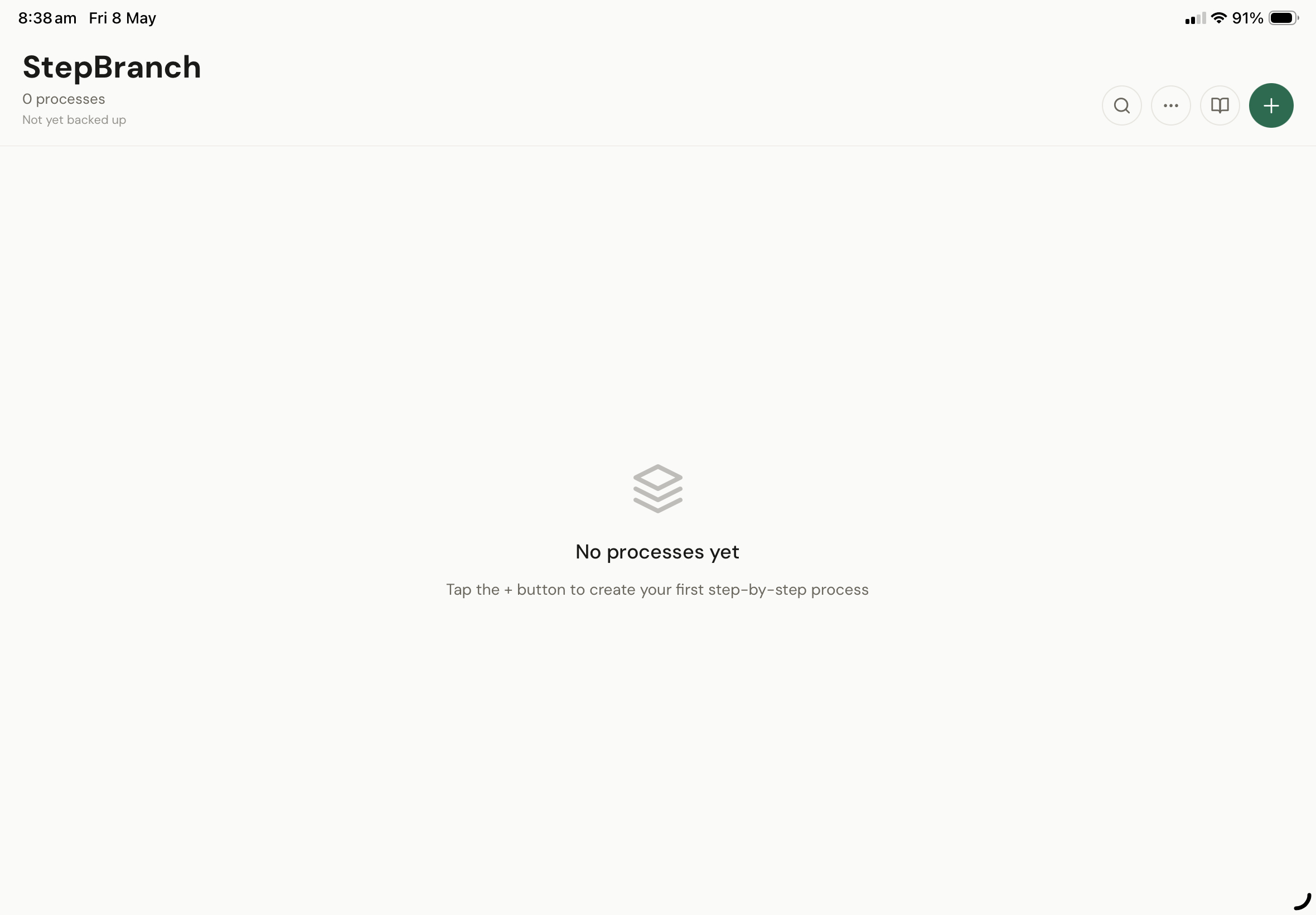
- Tap the New Process button
- Enter a name
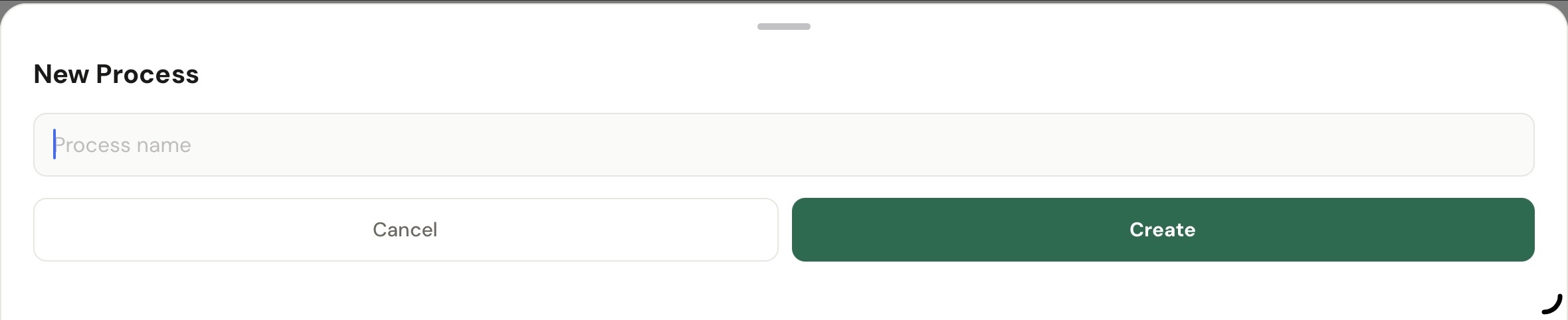
- Tap Create
- Add your first step
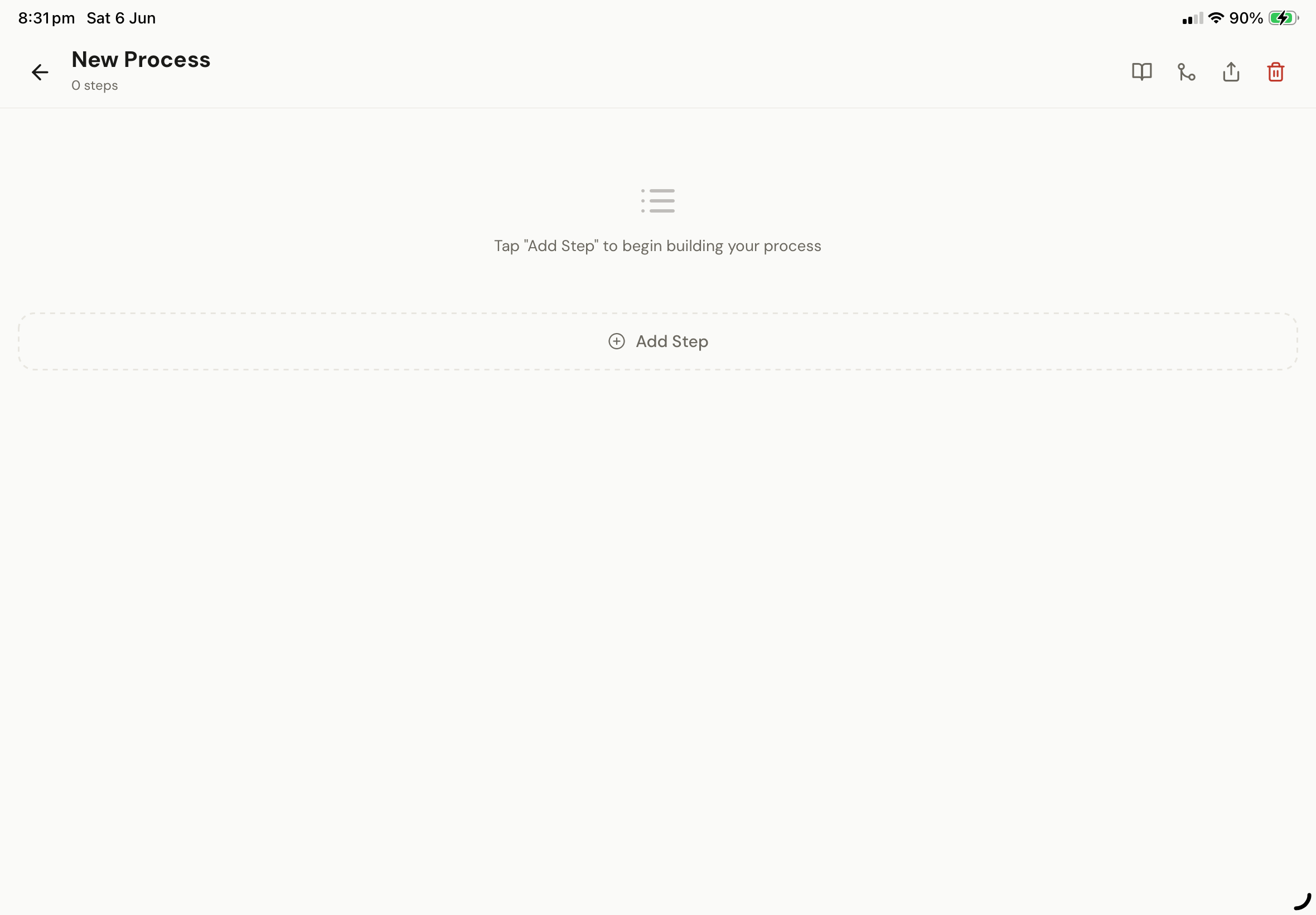
👍 StepBranch saves as you go. Your process is now ready to expand, organise, or export.
Organisation
Organising Your Processes
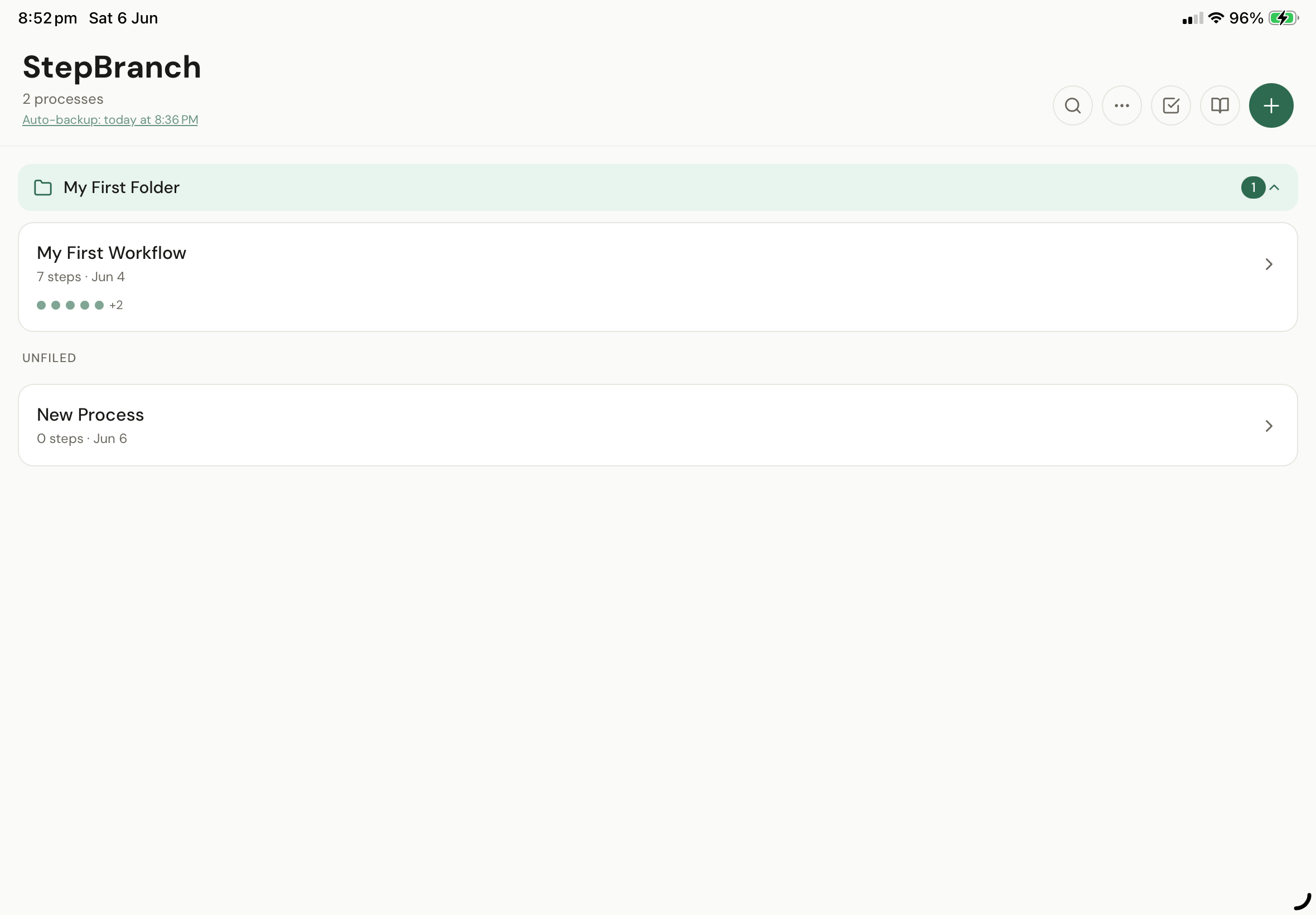
Create folders
- Tap the menu icon
- Tap New Folder
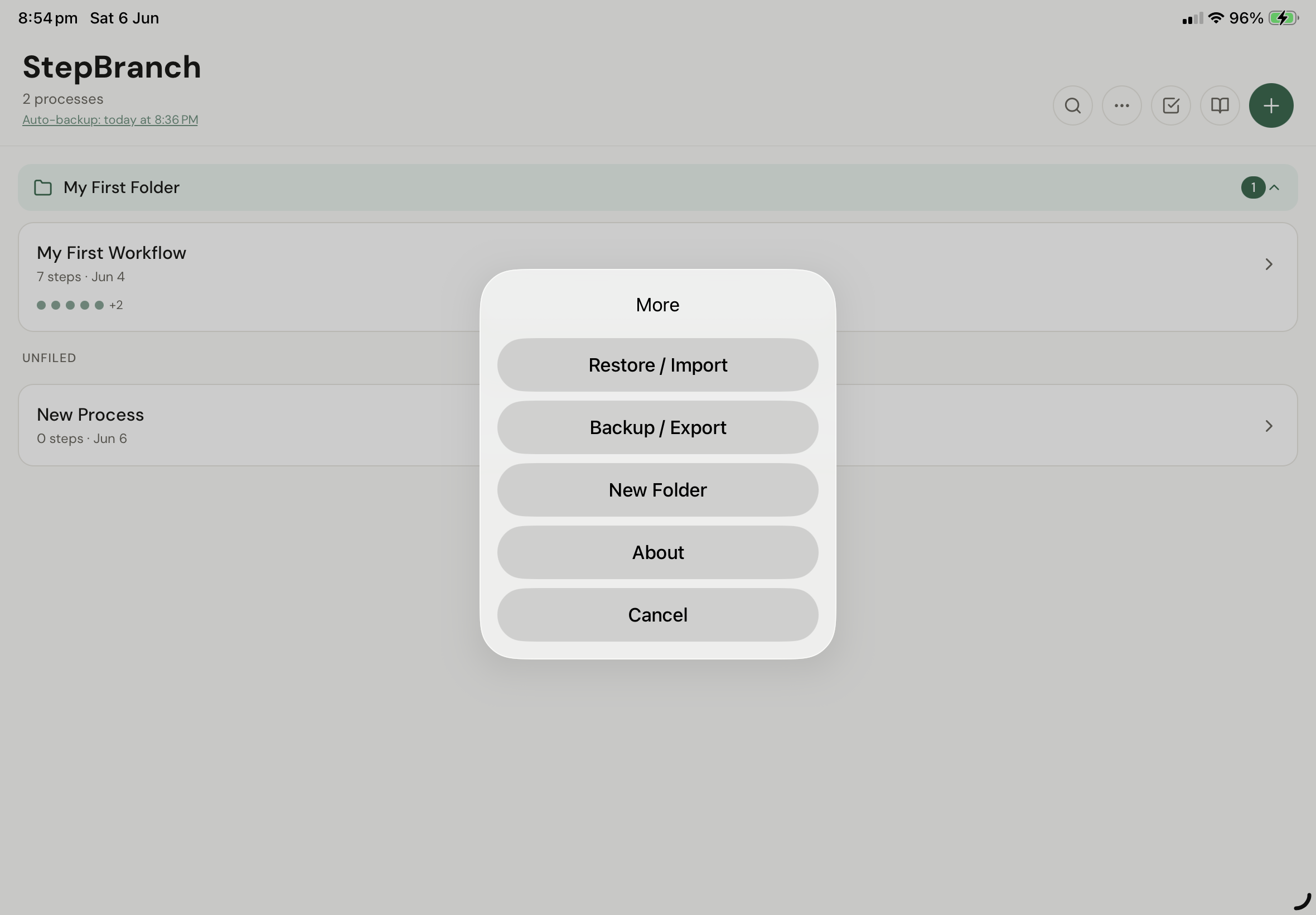
- Enter a name
- Tap Create
Move processes into folders
- Long press the process you wish to move
- Tap Move to Folder
- Choose a folder or create a new one
💡 Tip: Use folders to separate work, personal, or project-specific processes.
Core feature
Building a Process
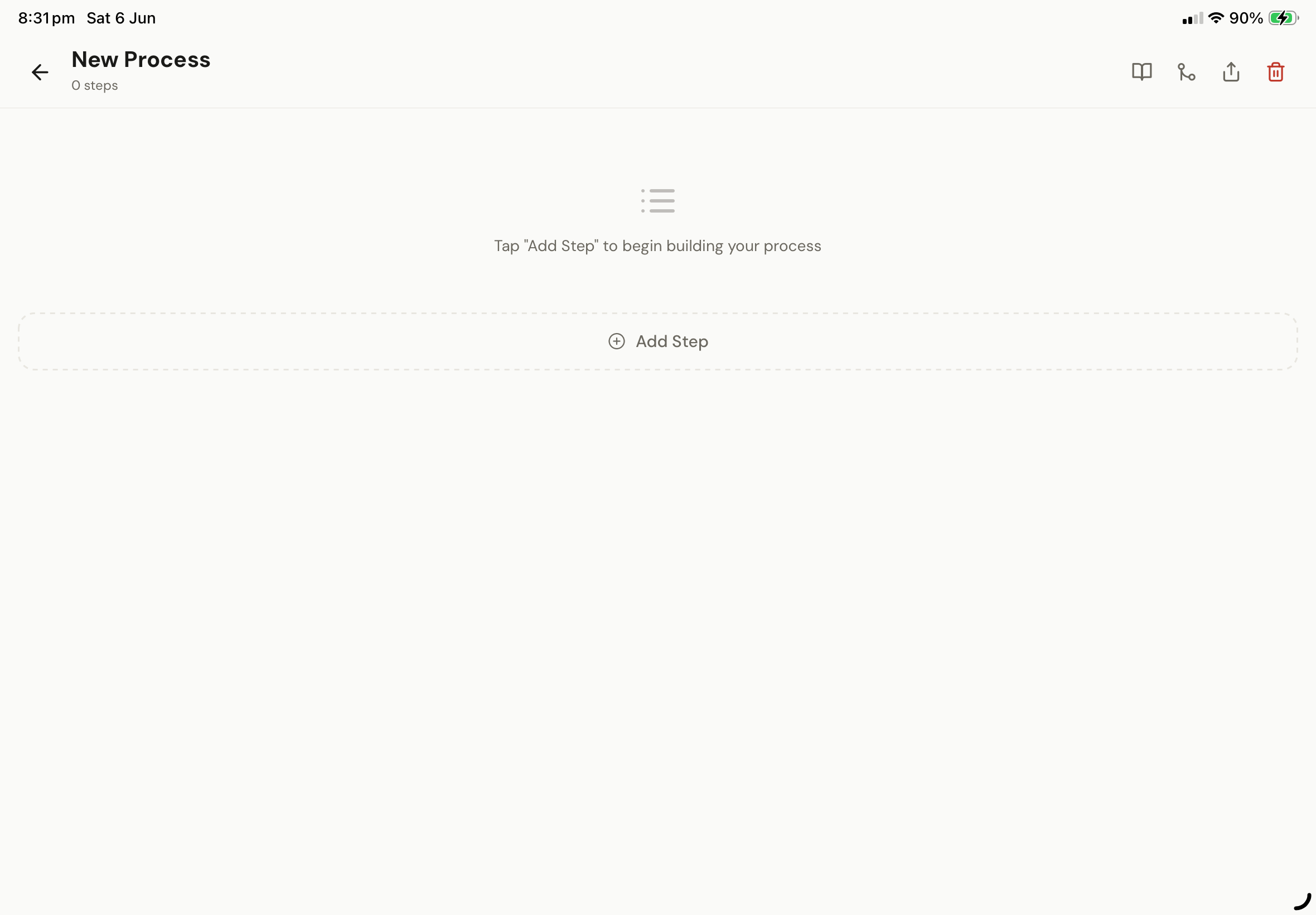
Add steps
- Open a process
- Tap Add Step
- Enter step details
Add decision points
- On the right side of a step, tap the decision icon to convert a step into a decision point. Tap again to revert back to a step.
- Enter your condition
- Define each branch
🔀 Decision points let you map real-world scenarios — not just linear steps.
Diagrams
View and Export a Diagram
- At the top right of the process, tap the diagram icon to view the process as a diagram
- To export — tap the export icon
- Choose an option:
📄 Draw.io
Export an editable diagram that can be opened and modified in Draw.io.
Export the process diagram as a PDF document.
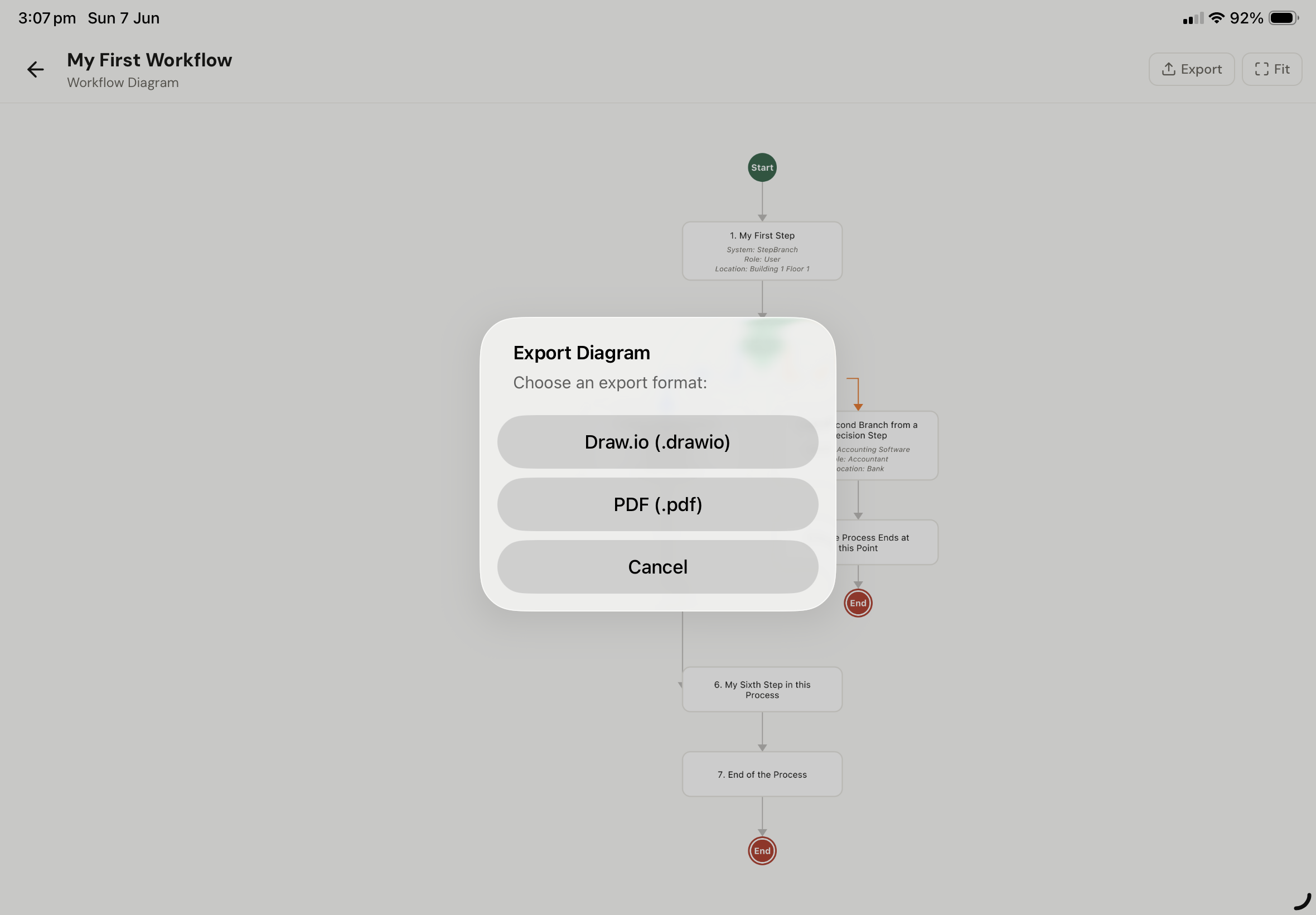
- Save to Files or share via another app
Data safety
Backup and Restore
🔒 Automatic backup occurs when the app moves to the background. Backups are stored locally in:
Files → On My iPhone/iPad → StepBranch → stepbranch-backups
Manual backup or export of all processes
From the main screen:
- Tap the menu icon
- Tap Backup / Export
- Choose where to save the file
File is saved with a .JSON extension and can be imported onto another device.
Manual backup of selected processes
From the main screen:
- Tap the select icon to enable process selection
- Select the processes you wish to backup
- Tap the export icon
- Choose where to save the files
Selected processes are saved together in a single JSON file.
Restore from backup
- Tap the menu icon and tap Import / Restore
- Select a JSON backup file
- Confirm restore
Sharing
Import & Export
Supported export formats
Spreadsheet
Shareable file
Diagram
Editable diagram
Export a process
- Open a process
- Tap the export icon
- Choose format — CSV (spreadsheet) or JSON (shareable)
- Save to Files or share via another app
Import processes
⚠️ Before using Replace All — it is recommended that you create a backup of your current processes first. This ensures your existing data can be restored if required.
From the main screen:
- Tap the menu icon
- Tap Restore / Import
- Select a JSON file
- Choose an option:
Merge
Adds processes that do not already exist. Existing processes are left unchanged.
Make a Copy
Imports all processes. If a process already exists, a duplicate copy will be created.
Replace All
Deletes all current processes and replaces them with the imported processes.
Ideas
Use Cases
Privacy
Data & Privacy
Read the full Privacy Policy.
Support
Frequently Asked Questions
Does the app need internet?
No. StepBranch works fully offline — no internet connection is required at any point.
Where are backups stored?
In the Files app: Files → On My iPhone/iPad → StepBranch → stepbranch-backups
Can processes be shared?
Yes, using JSON export. Export your process and share the file with anyone using StepBranch.
Will app updates remove my processes?
No. Your processes are stored locally and are not affected by app updates.
How do I transfer processes to another device?
Export your processes as a JSON file, transfer the file to the new device, then use Restore / Import.
For support, bug reports, or feature requests, get in touch:
StepBranch@bondsafeliving.com.au Bond Safe Living